
Here's how it works:
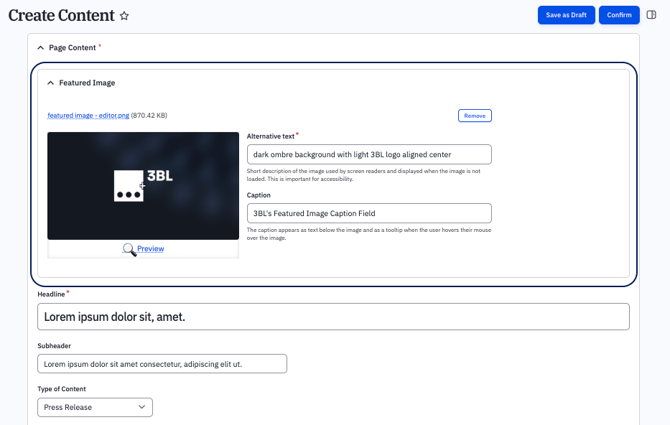
- Navigate to your content piece — this can be done at creation or edited during draft
- Click into the Featured Image field
- Upload your image (accepted file types: .png, .jpg, .jpeg — max 100MB)
- Add alt text (required) and a caption (optional)
- Save your changes
FAQ
What happened to the image carousel?
Featured content now uses a single dedicated image instead of a rotating carousel. This ensures your content displays the same image across every distribution endpoint.
While the carousel is still available, this feature will be retired in the coming weeks.
What happens to content that previously had a carousel with multiple images?
The first image in the carousel automatically becomes the new Featured Image. Any additional carousel images are preserved and will be linked at the bottom of the story.
If I edit the featured image after publishing, will it update everywhere?
It will not update since the content has already been published. If you would like to update the image, please publish a new FMR.