
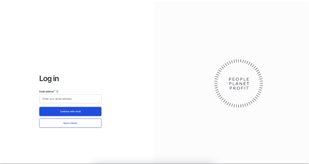
Log In with Magic Link
Here's how it works:
- Go to the login page
- Enter your email address
- Click the secure link we send you
That’s it — you’re in. No more forgotten passwords, no more reset requests.
Adding New Content
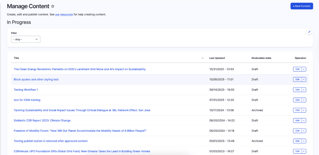
Want to upload new content? Navigate to the 'Manage Content' tab on the left-hand side of the portal.
Click the +New Content button, and begin creating your content.
FAQ
What type of content do I have?
Press Release: standard press release/media advisory format
Article: informational content
Blog: conversational content
Multimedia with summary: Photos, videos, or audio with summary and boilerplate
Newsletter: company newsletter
What is a campaign, and how do I make one?
A campaign is like a file folder for your content, so that readers can see your major initiatives on your account profile.
Create a campaign from the button under "Manage Campaigns" in your menu.
Add Details
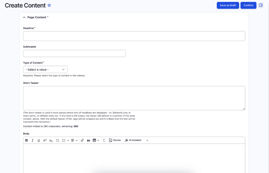
Page Content:
Copy and paste your Title/Headline, Subheader, and body content into the body section.
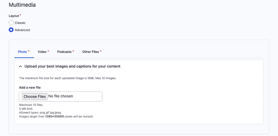
Multimedia:
Add up to 3 videos, 10 photos, 1 audio file, and other file types. The acceptable file types and sizes are listed under each multimedia type.
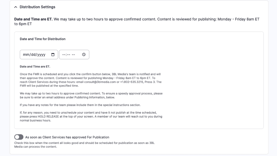
Distribution Settings:
Enter the date and time in Eastern Time that you would like your content to be released in the date & time fields.
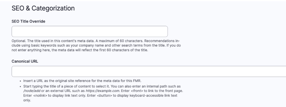
SEO & Categorization:
Input SEO customizations, a primary category, and add up to 1-3 tags separated by commas in the tags field.
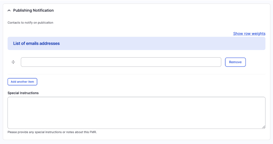
Publishing Information:
Enter the email information for the individual responsible for uploading the content. This ensures we can connect to the correct person by phone or email if we have questions or suggestions.
Finish Up:
Click "Confirm" to send your content to the publishing team for processing.