
Your Company Newsroom is a single profile page that presents your company, your content, and your media contact to 3BL's audience of investors, journalists, and policy makers. This article walks through the setup form field by field, from naming your newsroom to adding a media contact.
Before you begin
Gather these items first so you can complete the form in one sitting:
- Company name and short description. Your description appears at the top of the profile, so it should say who you are and what you do.
- Logo. One image file, used for both the Logo and Homepage tile fields.
- Banner image. A wide cover image for the top of the page.
- Website URL. The main link visitors should use to learn more about you.
- Media contact details. A name, role, and profile photo for the person journalists should reach.
- Alternative text for every image. Each image field requires a short description for screen readers.
Set up your newsroom
Open your company's record and select the Edit tab. The form runs top to bottom in the order below.
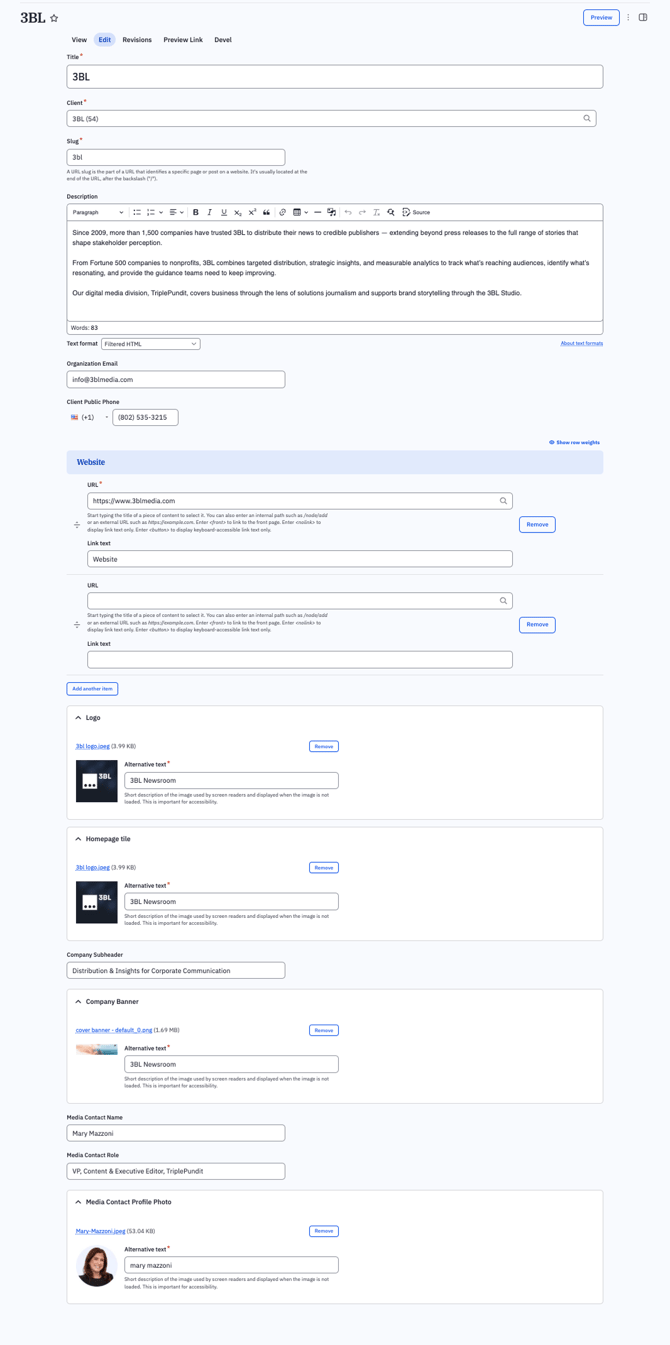
- Title. Enter your company name as you want it to appear on the profile.
- Client. Search for and select your client record. It shows your company name followed by its ID in parentheses.
- Slug. Enter the short, lowercase identifier that becomes the end of your newsroom's URL (for example,
3bl). - Description. Use the editor to tell your story: who you are, who you work with, and what you offer. Keep the text format set to Filtered HTML. Three short paragraphs works well.
- Organization Email and Client Public Phone. Add the general contact details you want the public to see.
- Website. Enter the URL and the link text visitors will click. Select Add another item to include more links, such as a sustainability report.
- Logo. Upload your logo, then add alternative text describing it.
- Homepage tile. Upload the image used for your company's tile, then add alternative text. You can reuse your logo.
- Company Subheader. Write a short line that describes what your company does. It appears beneath your name.
- Company Banner. Upload a wide cover image for the top of your profile, then add alternative text.
- Media Contact. Enter the contact's name and role, then upload a profile photo with alternative text.
- Save. Select Save at the bottom of the form to apply your changes.
Field reference
Fields marked with a red asterisk in the form are required.
|
Field |
What it controls |
Required |
|---|---|---|
|
Title |
Your company name on the profile |
Yes |
|
Client |
The client record the newsroom belongs to |
Yes |
|
Slug |
The end of your newsroom's URL |
Yes |
|
Description |
Your company story in the main profile text |
No |
|
Organization Email |
A public contact email |
No |
|
Client Public Phone |
A public contact phone number |
No |
|
Website |
The destination of a link to your website |
No; recommended |
|
Link text |
The words visitors click |
No |
|
Logo |
Your company logo |
No |
|
Logo: Alternative text |
A screen reader description of the logo |
Yes, once a logo is added |
|
Homepage tile |
The image for your company's tile |
No |
|
Homepage tile: Alternative text |
A screen reader description of the tile image |
Yes, once an image is added |
|
Company Subheader |
A short line beneath your name |
No |
|
Company Banner |
The cover image at the top of the profile |
No |
|
Company Banner: Alternative text |
A screen reader description of the banner |
Yes, once an image is added |
|
Media Contact Name |
The name shown on the media contact card |
No |
|
Media Contact Role |
The contact's title and organization |
No |
|
Media Contact Profile Photo |
The contact's photo |
No |
|
Media Contact Profile Photo: Alternative text |
A screen reader description of the photo |
Yes, once a photo is added |
Tips for a strong profile
- Lead the description with your value. State what you do and who you serve in the first sentence, since visitors skim.
- Keep the subheader to one line. It works like a tagline, so make it specific.
- Use a wide, high-quality banner. It fills the top of your profile and sets the first impression.
- Write useful alternative text. Describe what the image shows, for example "Company logo" or "Portrait of Mary Mazzoni", not just the company name.
- Choose a media contact who responds quickly. Journalists use this card to reach you, so name the person who handles press requests.
Preview and publish
Use the Preview button at the top right of the form to check how your newsroom will look. Review the hero, description, feed, and media contact card, then return to Edit to fix anything that needs changing. When everything looks right, save your changes.