
Log In and Open the Tracker
- Log in to your dashboard.
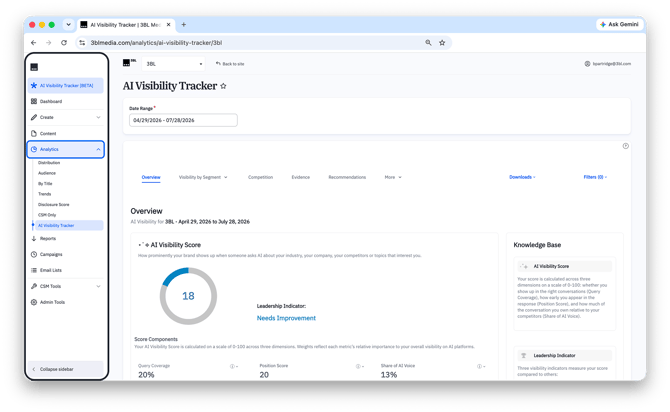
- Click AI Visibility Tracker in the top left-hand corner of your dashboard menu.
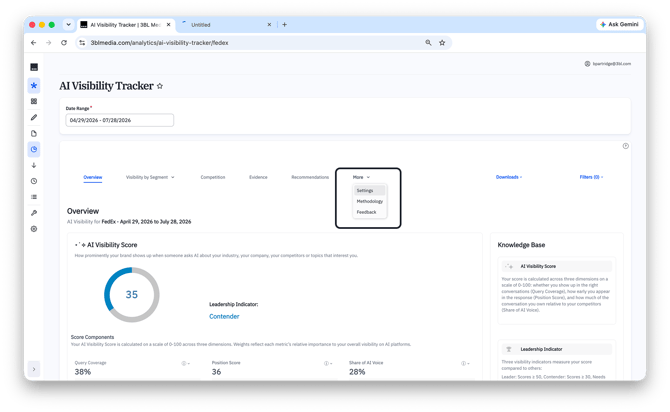
- Your overview screen loads with your current visibility score.
View Your Visibility Score
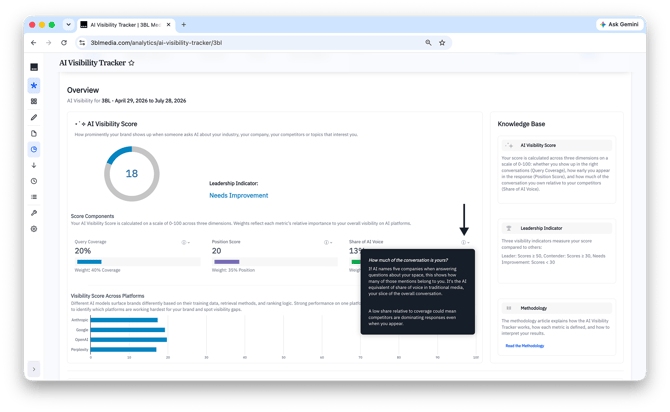
- From the overview page, find the score displayed at the top of the screen — it's on a 0–100 scale.
- Hover over Query Coverage, Position Score, or Share of AI Voice to see a short definition of each.
- Check your performance band, shown next to your score: Needs Improvement, Contender, or Leader.
View Visibility by Segment - ADVANCED SUBSCRIPTIONS
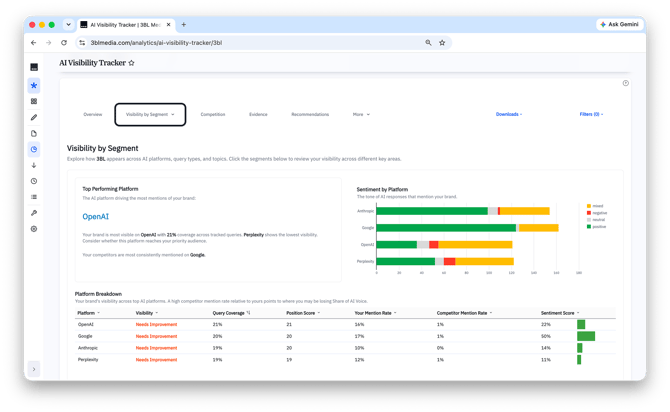
- Click Visibility by Segment in the tracker's navigation.
- Use the filter menu in the top right to narrow results by platform, topic, persona, or intent.
- Review your score broken down by whichever slice you've selected.
Compare Yourself to Competitors
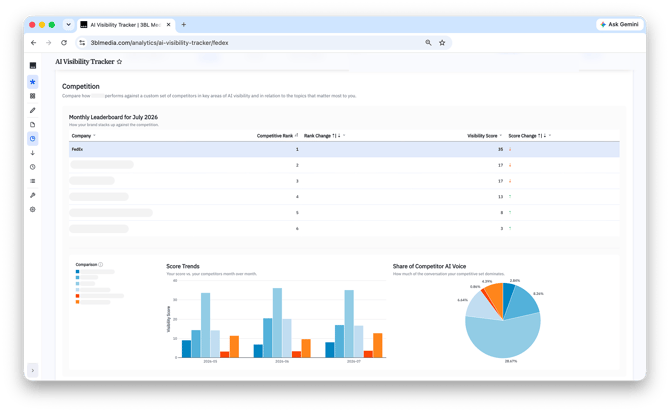
- Click the Competition tab.
- View the leaderboard to see your overall rank against your peer group.
- Click into the head-to-head view and select a topic to compare scores side by side.
- Use the competitor filter to isolate one company at a time instead of viewing the peer group average.
Review Your Evidence
- Click the Evidence tab.
- Select a topic or query row to expand it.
- Read the actual prompt that was sent and the response the platform generated.
- Scroll down to see the sources most frequently cited across responses.
Update Your Settings
- Click your profile in the top menu.
- Select Account Settings, then AI Visibility Tracker Settings, then Edit.
- Update your topics, audience personas, and competitor set, then submit.
- For account with Custom Prompts (Advanced), update your prompts within the AI Visibility Tracker tool directly.
Configuration options:
-
Topics: the themes we generate prompts around for your account — choose from the configurable list.
-
Audience Personas: the type of asker we simulate when generating prompts; select up to two.
-
Competitors: up to five named organizations to benchmark your scores against.
FAQ
Q. How do you generate or source prompts?
A. We use combination of records of actual conversations, our own search engine data, content performance data, industry research, and our own employee voices to come up with relevant topics and prompts. The best prompts have been discovered through experimentation and it's an area we are actively iterating on that will continue to be updated.
Q. How can I tell if a certain story moved the needle?
A. Custom prompts allow you to use specific prompts for specific questions. Publishing a series of content with a custom prompt specifically about the topic allows you to compare scores over time. Additionally, stories surfaced in the 3BL Citations section of the dashboards indicates it was used in the calculation of your visibility score.
Q. My score seems low — is something wrong?
A. Not necessarily. Scores in the 30s (Contender) are common and often ahead of peers. If a score looks off compared to what you'd expect, check the Evidence tab (below) before assuming there's an error.
Q. Can I add topics that aren't on the list?
A. Some topics are configurable directly in Settings (see below). For anything outside that list, contact your account team.
Q. Can I change who's in my competitor set?
A. Yes — go to Account Settings (see below) to update your peer group, up to five companies.