
Scope note: this article covers the inline toolbar button only — not the featured image field or the additional media slider, which live elsewhere in the editor.
Where to find it
It sits in the Body field toolbar, after the formatting and styling options.

The icon combines a picture and a musical note — it's the same entry point regardless of which media type you're inserting.
The dialog
Clicking it opens "Add or select media," with four tabs down the left side. Every tab shares the same basic pattern: upload a new file, or pick an existing one from the library.
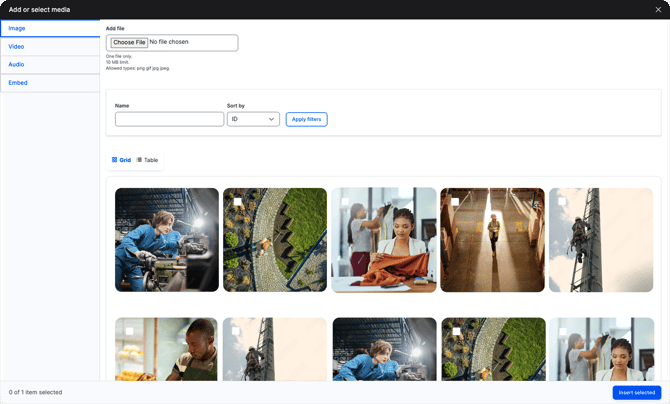 The Image tab open, showing the upload field and the existing media library below it.
What each tab accepts
Image
| File size limit | 10MB |
| Accepted types | PNG, GIF, JPG, JPEG |
Video
| File size limit | 100 MB |
| Accepted types | MP4 |
Audio
| File size limit | 10MB |
| Accepted types | MP3, WAV, AAC |
Embed
| Accepted providers | YouTube, Vimeo, DailyMotion, Spotify (songs only) |
What is accepted downstream
| TYPE | REACHES | DOES NOT READ |
| Image | All channels | — |
| Video | 3BL owned properties and affiliates | Syndicates |
| Audio | 3BL owned properties and affiliates | Syndicates |
| Embed | All channels | — |
Note on captions: Captions reach every channel but syndicates render them as an ordinary paragraph beneath the media rather than as a true caption, so they lose their visual distinction.